 Whenvelope
Step-by-step guide
Making your first box, step by step
This guide walks you through making an “Open when…” box for your grandchild, one small step at a time. Take it slowly. Nothing reaches them until you press send, and you can change almost everything later.
In the pictures, Grandma and Grandpa are making a box for their granddaughter, Emma. You’ll see your grandchild’s name where it says Emma.
We say “tap”. On a computer, that means click.
You don’t have to finish in one sitting. Everything is saved as you go, so you can stop and come back another day.
Part 1
Make your account
- Go to whenvelope.com and tap Start a box. It’s at the top of the page, on the right.
- Type your name and your email address.
- Make up a password and type it under “Password”. It needs at least 8 characters, and one of them has to be a number. Write it down somewhere safe.
- Tap the little square next to “I agree to the terms”, so a check mark appears. Then tap Create account.
Open your email. Look for an email from Whenvelope called “Your Whenvelope code”. It has a 6-digit number in it.
Not there after a minute? Look in your spam or junk folder. Some people have found it there. If it’s there, mark it “Not spam”, so our next emails reach your inbox.Go back to the Whenvelope page. Type the 6 numbers under “Verification code”, then tap Confirm email.
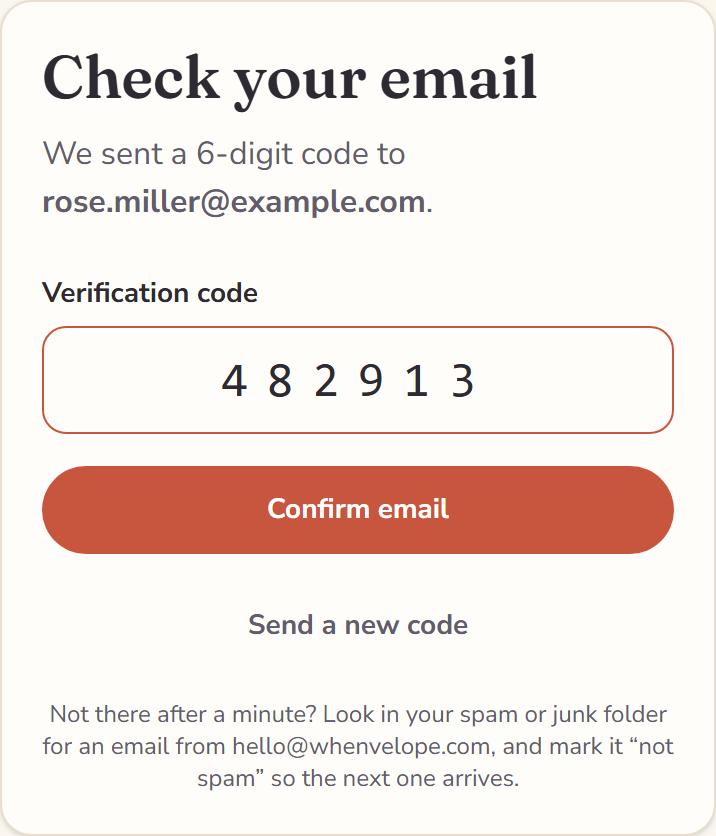
If it asks you to sign in, type your email and password, and tap “Sign in”.
Part 2
Start the box
Next comes a page called “Let’s make them a box”, with a few questions. You can change every answer later.
- Under “What’s it for?”, tap the big step your grandchild is taking, such as Off to college. The others are moving out, getting married, a first baby and a military deployment.
- Under “Who is it for?”, type your grandchild’s name, the way you’d write it after “Dear”.
Under “Who is it from?”, type how you sign your letters, such as “Grandma & Grandpa”. Every letter ends with “Love,” and this name.
The small grey line under it may say “Signed ‘Love, Mom & Dad.’” That’s only an example. Your letters use the name you typed.
Under “How often can they open one?”, tap how often a new envelope unlocks. One a week is a good place to start: it makes the box last a whole school term.
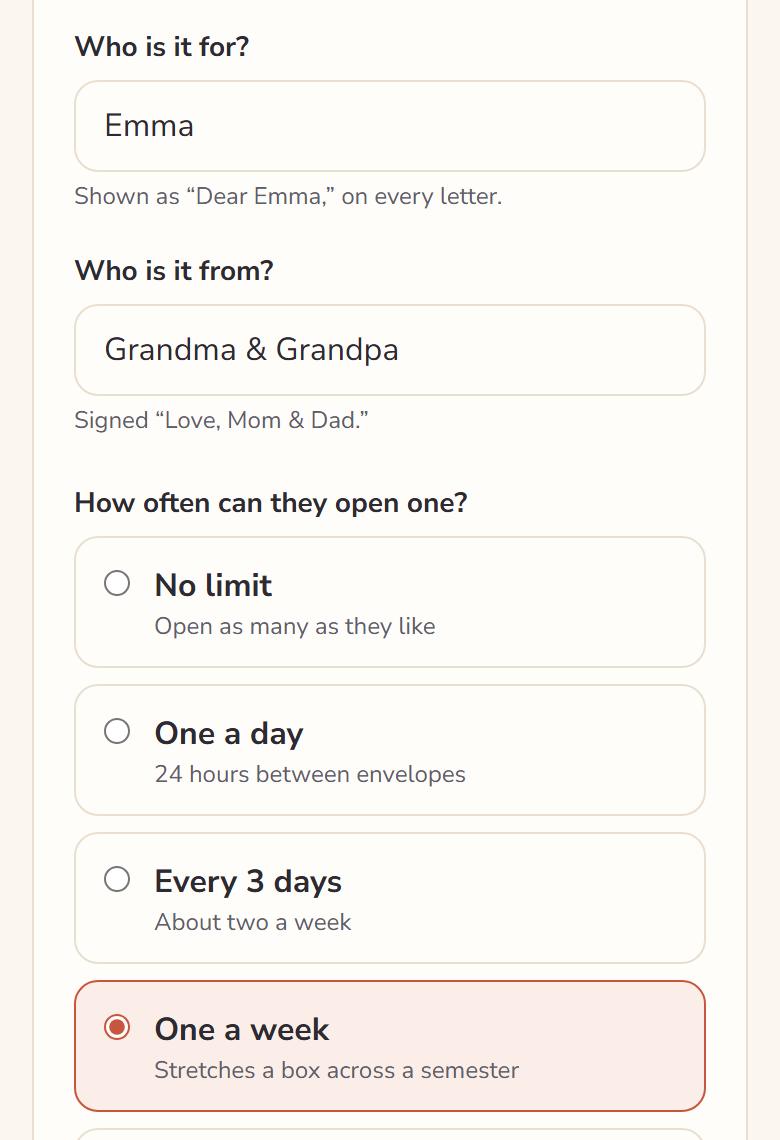
- Leave the PIN empty for now; you can add one later. Then tap Next: pick envelopes → at the bottom.
Part 3
Choose your envelopes
Each envelope has a line on the front, like “Open when you miss home”, and a letter inside. There are dozens of ideas to choose from, and each comes with a starter letter you can rewrite.
- Scroll down through the ideas. Tap each one you like, and a check mark appears in its corner. Tap it again to take it back.
Tap Add 4 to the box at the bottom of the screen. The number is however many you picked.
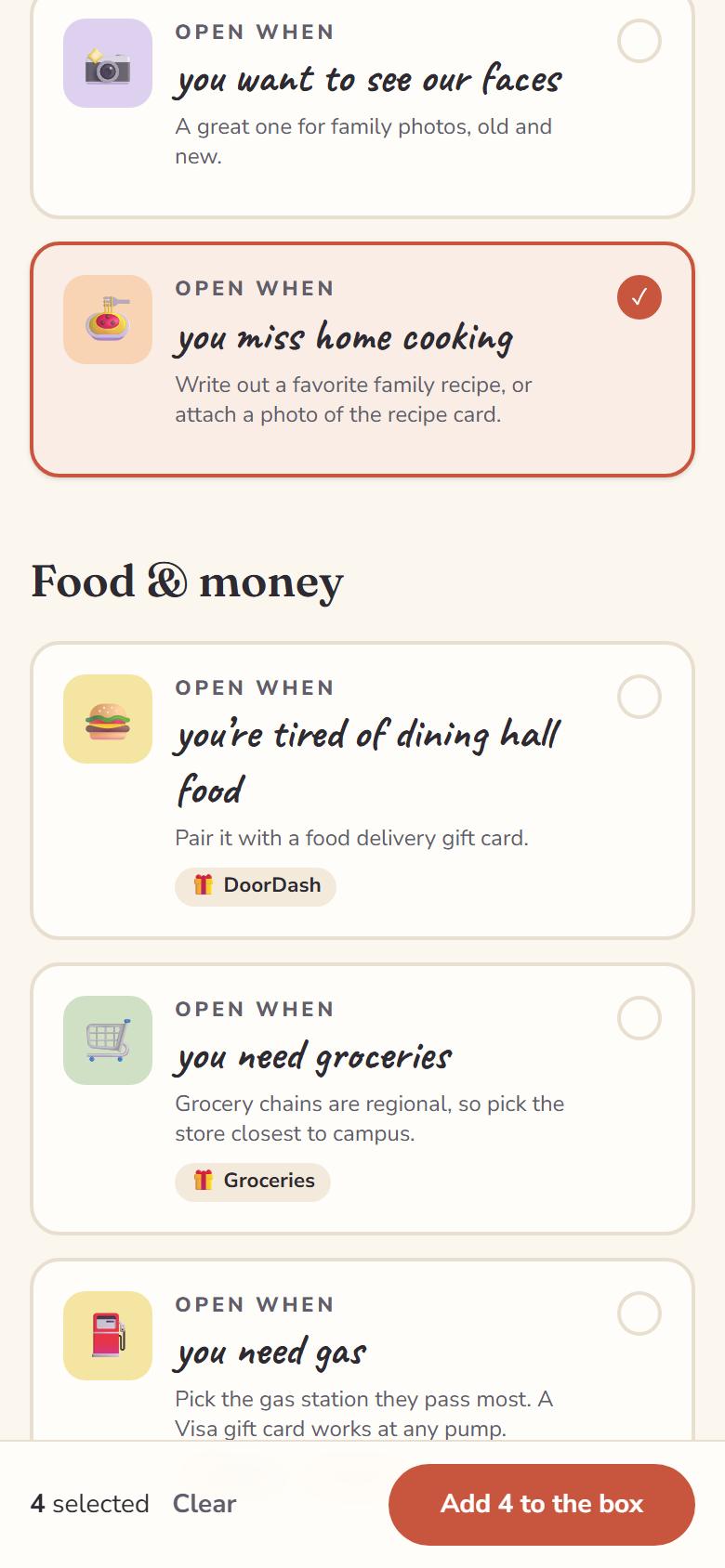
Now you’re on your box’s page. Your envelopes are all here. “Needs your touch” means there’s a spot in that letter for you to fill in.
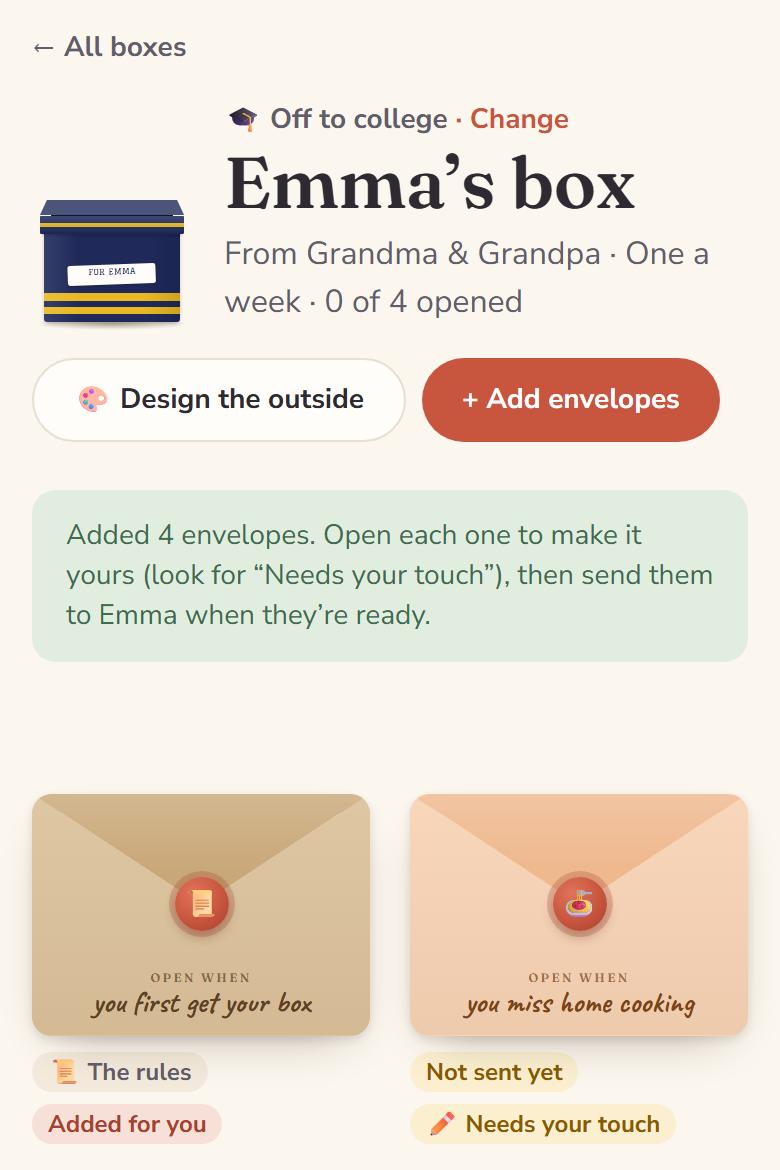 The first envelope, “Open when you first get your box”, is added for you. It explains to your grandchild how the box works, so you don’t have to.
Part 4
Write your letters
- Tap an envelope to open it. Start with one marked “Needs your touch”.
- Scroll down to “Your note to Emma”. The starter letter is in the big box there.
Change the letter into your own words. Words in [square brackets] are spots for you to fill in: replace the whole spot, brackets and all. You don’t need to type “Dear” or “Love”; those are added for you.
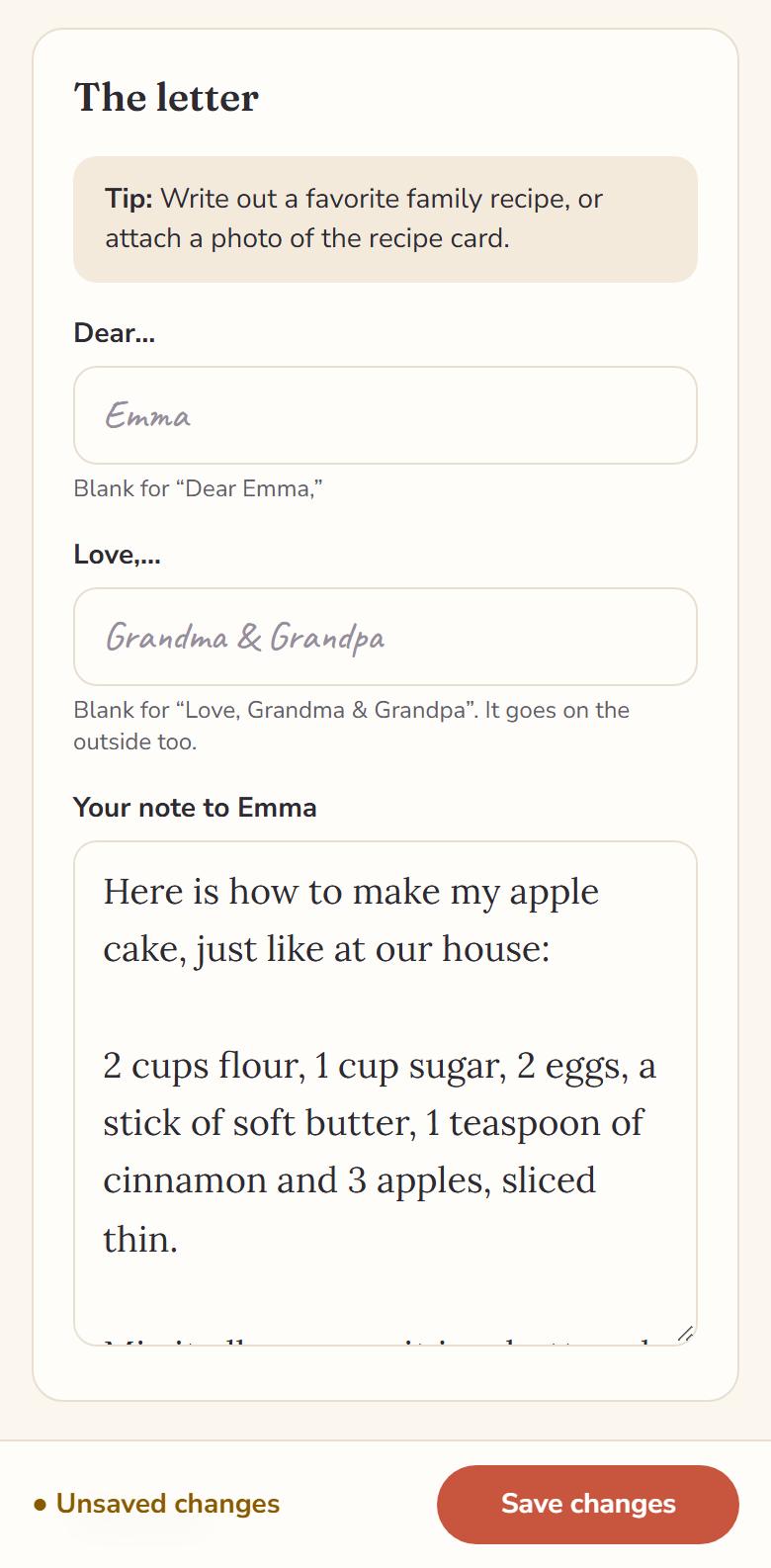
- Tap Save changes at the bottom of the screen. When it says “Saved ✓”, your letter is safe.
- Tap ← Emma’s box at the top to go back to your box. Do the same for each envelope.
Extras, if you like
- Photos: in an envelope, tap “Add photos” and pick up to 6. They’re saved as soon as they upload.
- A gift card: tap “Tuck a gift card in this envelope”, then copy in the code from the store’s email. It stays hidden until your grandchild opens that envelope.
- A video or a song: each has its own spot further down in the envelope.
- An envelope of your own: on your box’s page, tap “Write your own”. Type the “Open when…” line and your letter, then tap “Save envelope”. You can add photos once it’s saved.
Nothing you write goes to your grandchild yet. Your envelopes wait here until you send them. To come back later, sign in, tap “My boxes” at the top, and tap the box.
Part 5 · If you like
Decorate the outside
This is the first thing your grandchild sees. Every box starts with a look of its own, so you can skip this part.
- On your box’s page, tap 🎨 Design the outside.
Pick what the envelopes come in: a gift box, a mailbox or a big envelope. Then, if you like, pick colors (there are school colors too), a pattern and the words on the label.
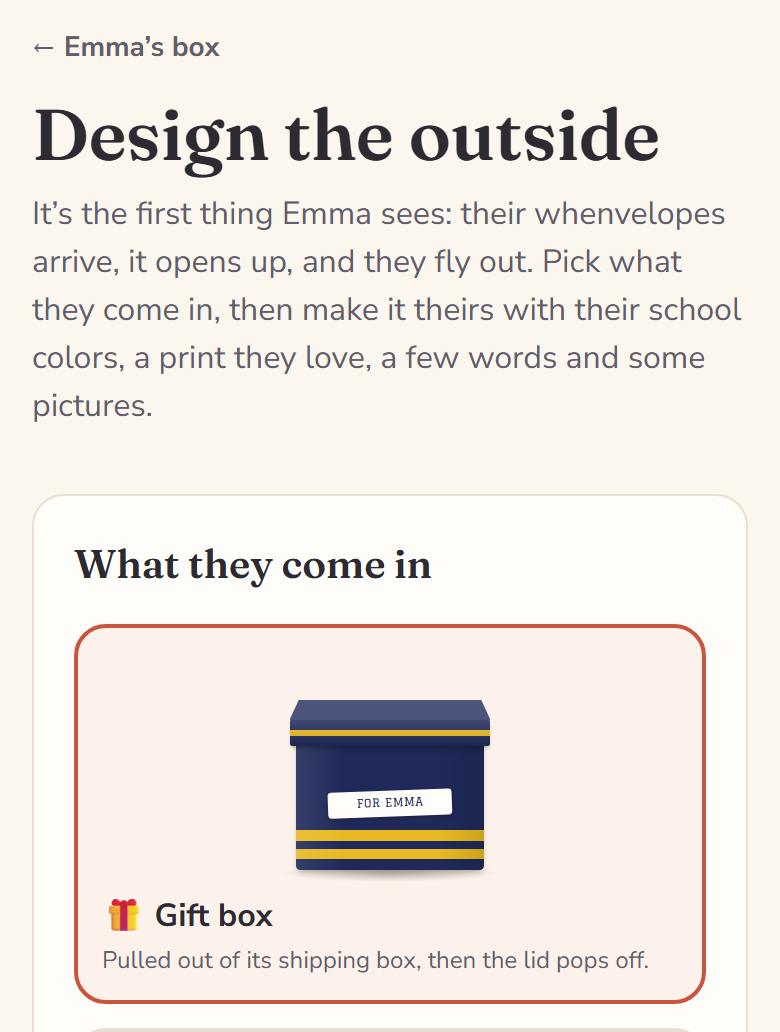
- Tap Save design at the bottom. To see how it will open for your grandchild, tap “▶ Watch it open”.
Part 6
Buy envelopes
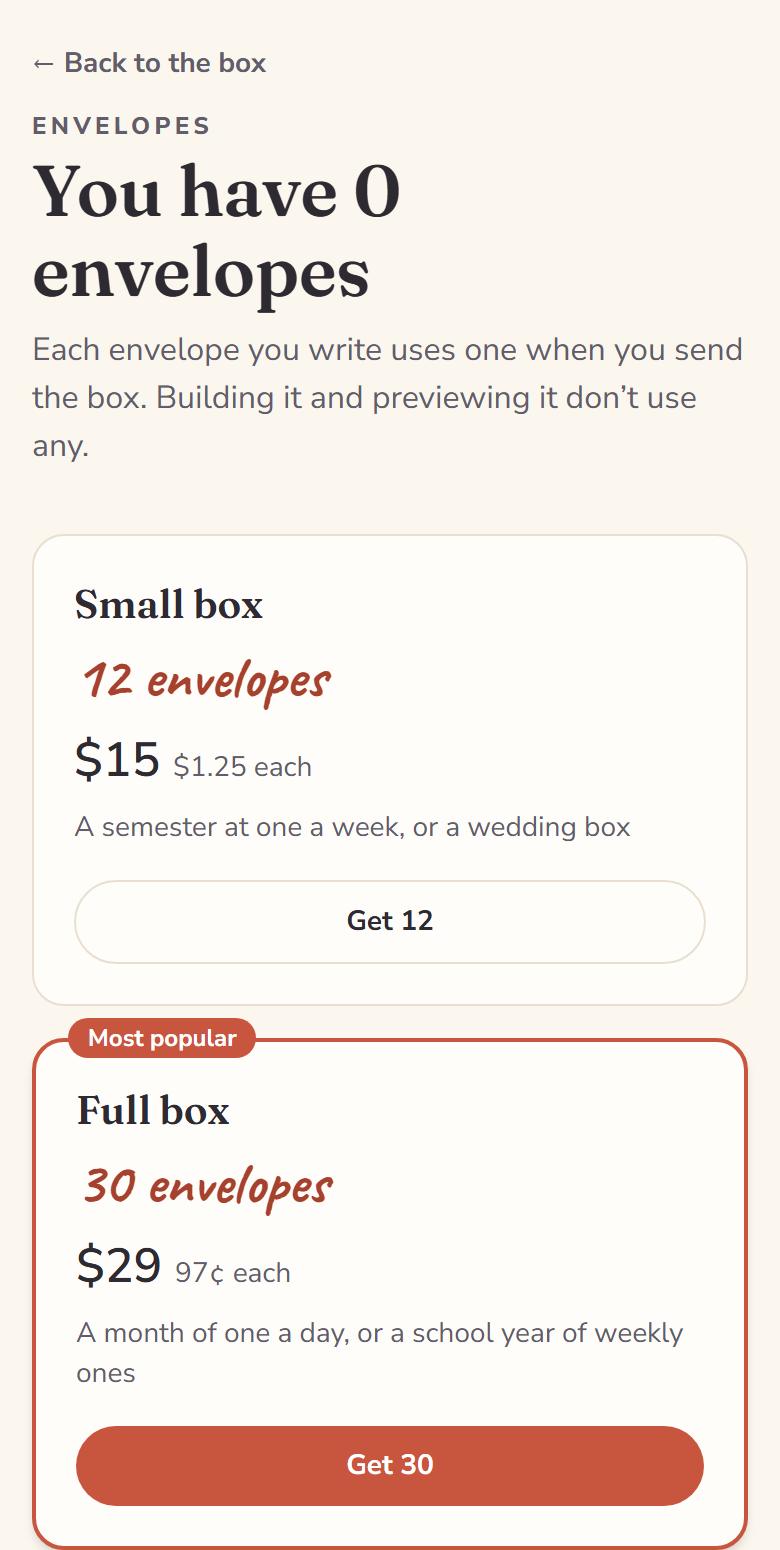
Making the box and writing your letters is free. You pay when you send: each envelope you send uses one envelope from your account. There’s no free trial. Envelopes come in packs:
- 12 envelopes for $15
- 30 envelopes for $29
- 60 envelopes for $49
- 120 envelopes for $79
Envelopes you don’t use stay in your account for your next box. They don’t expire.
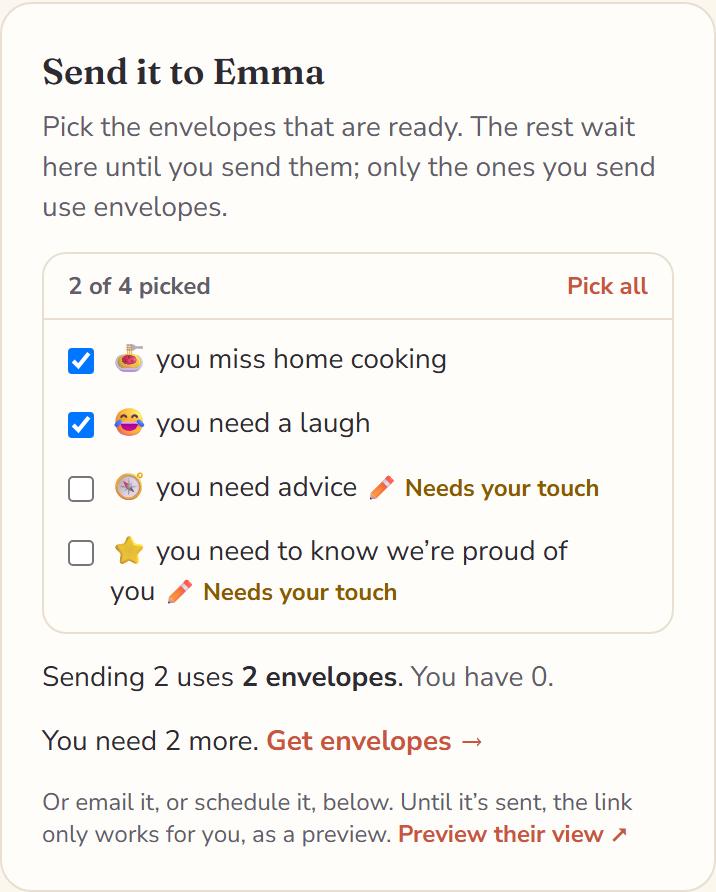
- Go to your box’s page and find the part called “Send it to Emma”. On a phone, it’s below your envelopes. On a computer, it’s on the right.
If it says “You need 2 more”, tap Get envelopes →.
Tap the button under the pack you want, such as Get 12. The packs have names like “Small box”, but they’re only envelopes: you’re not buying another box.
Stripe’s payment page opens. Stripe is the company that takes the payment, so we never see your card number. The page’s address starts with checkout.stripe.com.
Type your card details and tap Pay. If you have a discount code, tap “Add promotion code” first. Changed your mind? Tap the back arrow at the top of Stripe’s page, and nothing is charged.
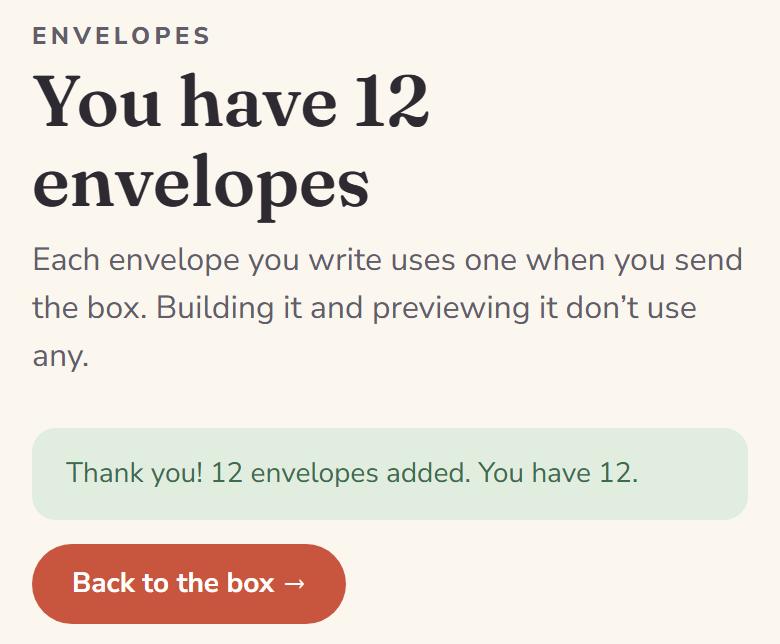
You come back to Whenvelope, and it says “Thank you!” Tap Back to the box →.
Part 7
Send it
On your box’s page, find “Send it to Emma” again. The envelopes that are ready already have a check mark. The ones that still “Need your touch” don’t; finish them first, or send them another day.
Pick one of these three ways for the box to reach your grandchild. Each one sends the envelopes with a check mark.
Send the link yourself
Tap Send 2 and get the link. The number is how many have a check mark.
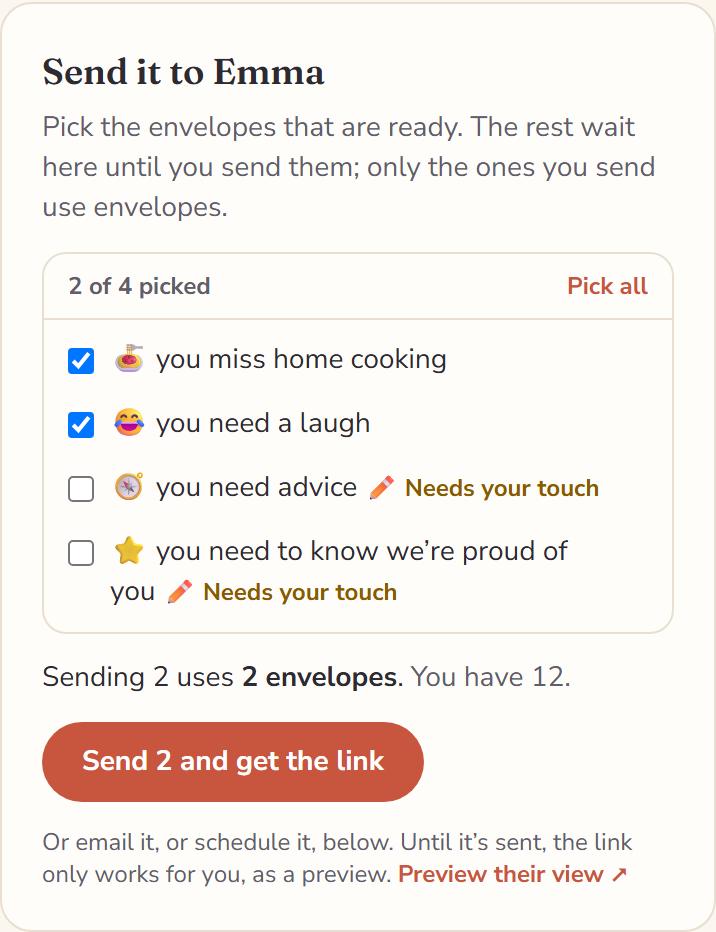
Then tap Copy next to the link, and paste it into a text message or an email to your grandchild.
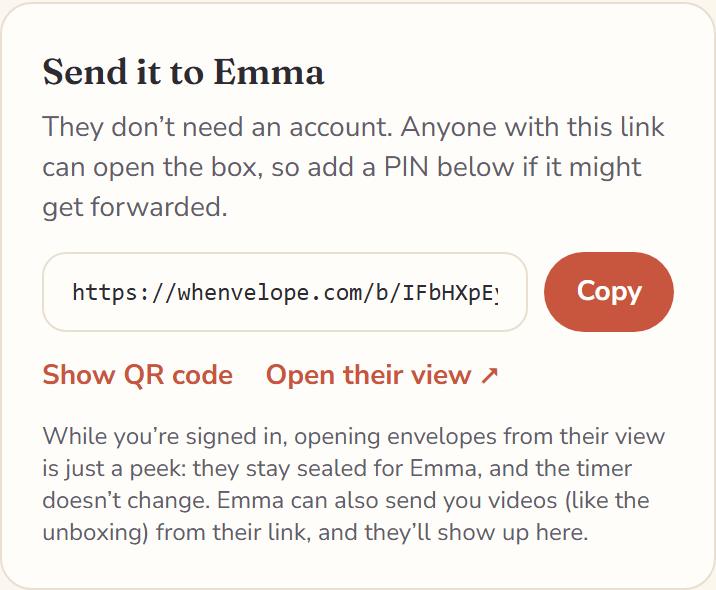
Or: we email it to them now
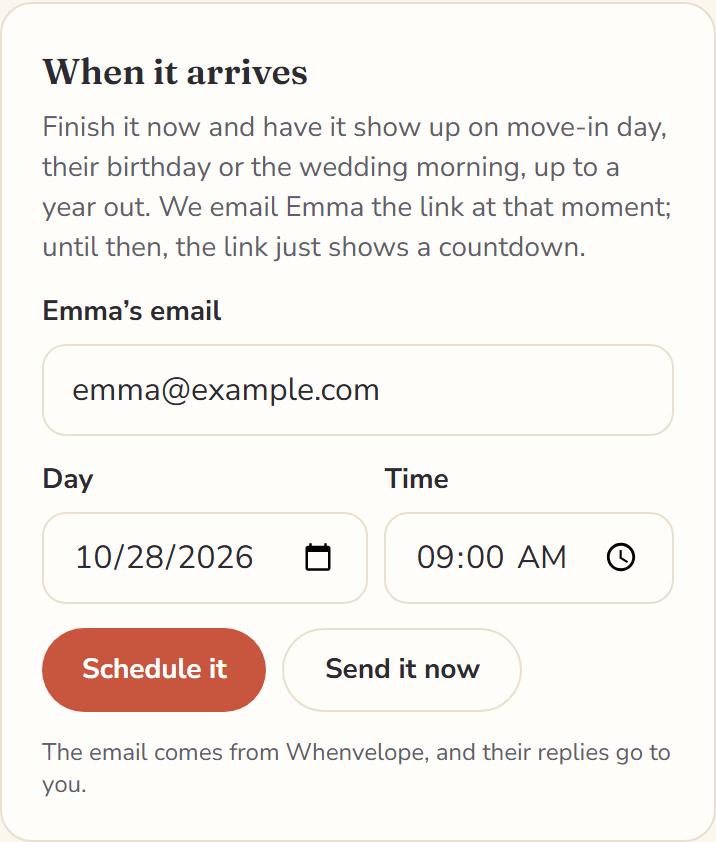
Scroll down to “When it arrives”. Type your grandchild’s email address, then tap Send it now.
Or: we email it on a day you choose
In “When it arrives”, type their email address, pick the day and the time, and tap Schedule it. Until then, their link just shows a countdown.
That’s it! Your grandchild opens the link on their phone or computer. They don’t need an account or an app. They open the envelopes one at a time, at the pace you picked.
After you send
- You can still fix a letter: open it, change it, and tap “Save changes”.
- To add more, add envelopes the same way as before. Then find “Send more to Emma”, tick the new ones, and tap the Send button.
- If you delete an envelope before your grandchild has opened anything in the box, you get it back.
Part 8 · If you like
Ask family to write one
Someone else in the family can write an envelope too, with their own letter and photos. They don’t need an account.
- On your box’s page, tap Ask someone. It’s next to your envelopes.
Under “Who are you asking?”, type what your grandchild calls them, such as “Aunt Lily”. If you like, suggest an “Open when…” line for them.
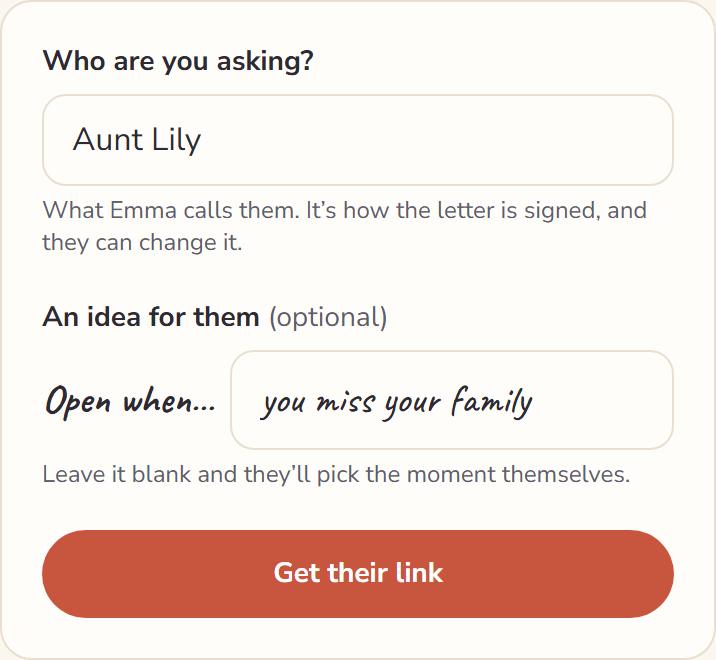
- Tap Get their link.
Tap Text it or Email it to send them their link.
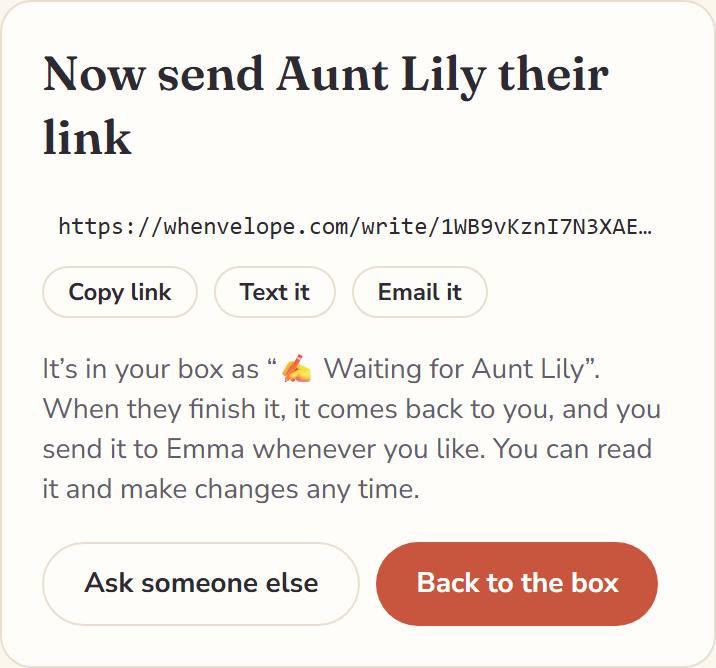
- Until they finish, their envelope shows in your box as “Waiting for Aunt Lily”. When they’re done, send it with your own, the same way.
Their link opens only that one envelope, not the rest of your box. Up to 10 letters from family in each box don’t use any of your envelopes.
If you get stuck
- The code email didn’t come.
- Look in your spam or junk folder for “Your Whenvelope code”, from hello@whenvelope.com. Still nothing? Check that your email address is spelled right, then tap “Send a new code”.
- I closed the page before typing the code.
- Go to whenvelope.com, tap “Sign in”, and type your email and password. We’ll send you a new code.
- I forgot my password.
- Tap “Sign in”, then “Forgot it?”. We’ll email you a code to make a new one. Look in spam or junk for that one too.
- I can’t find my box.
- Sign in, then tap “My boxes” at the top of the page.
- Something else.
- Email us at hello@whenvelope.com. Tell us what you were trying to do, and we’ll help you finish your box.
Ready when you are.
Start a box